Add a Grade
Enter a Single Grade
- Click on the corresponding cell in the grade table or on Add Grade for a student
- Fill in the grade form:
- Category — Select a grade category (e.g., Exam, Participation)
- Grade Value — Numeric (1–5) or Plus/Minus (+/~/-)
- Or Percentage — Enter a percentage (0–100%) that is automatically converted to a grade
- Date — Defaults to today
- Label — Optional (e.g., "Test 1", "Exam Ch. 3")
- Pending — Mark the grade for later entry
- Include in Average — On/Off
- Confirm with Save
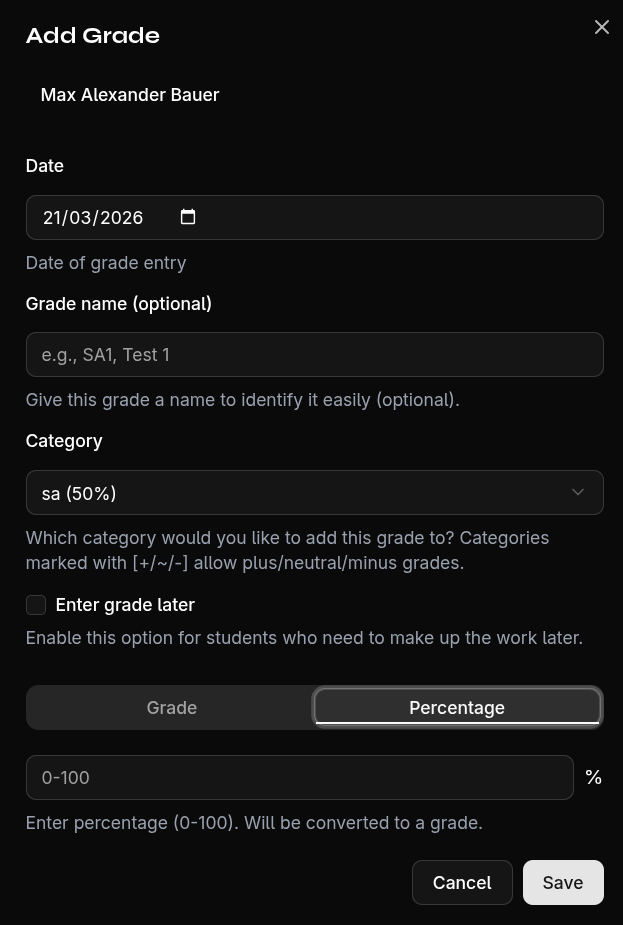
Percentage Input
When you enter a percentage, it is automatically converted to a grade based on the configured grade ranges. Example:
| Percentage | Grade |
|---|---|
| 92% | 1 |
| 75% | 2 |
| 60% | 3 |
| 45% | 4 |
| 30% | 5 |
Bulk Grade Entry
You can assign the same grade to multiple students at once:
- Select the desired students using the checkboxes
- Click Add Grade for Selection
- Category, date, and label apply to all selected students
- The grade value can be entered individually or uniformly
Pending Grades
Mark a grade as pending if you want to enter the value later. Pending grades:
- Are visually highlighted
- Are not included in the average calculation
- Serve as a reminder that a grade is still missing