Managing School Years
Each class can have multiple school years. This lets you track a class like "3A" across several years.
Year Selector
In the class view, you'll find the year selector above the grade table. Use it to switch between different years.
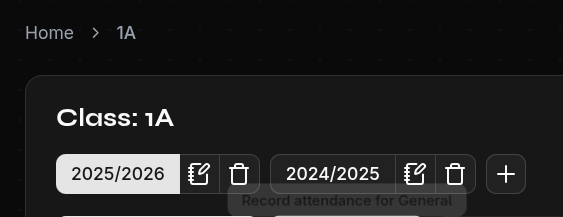
Add a New School Year
- Click the + icon in the year selector
- Enter the name (e.g., "2026/2027")
- Optional: Copy students and subjects from previous year
- Confirm with Create
Copy Data from Previous Year
When you enable this option:
- Students are copied with new names (without grades!)
- Subjects are copied (including attendance settings)
This saves you from re-entering all students.
Edit a School Year
Click the Edit button next to the year to change its name.
Delete a School Year
- Only available if the class has more than one year
- All students, grades, and subjects of that year are deleted
Important
Students and grades are year-specific. When you switch years, you see different students and grades. This allows you to track the same student across different years with different grades.