Import Data
Restore your data from a previously created backup.
When Is Import Available?
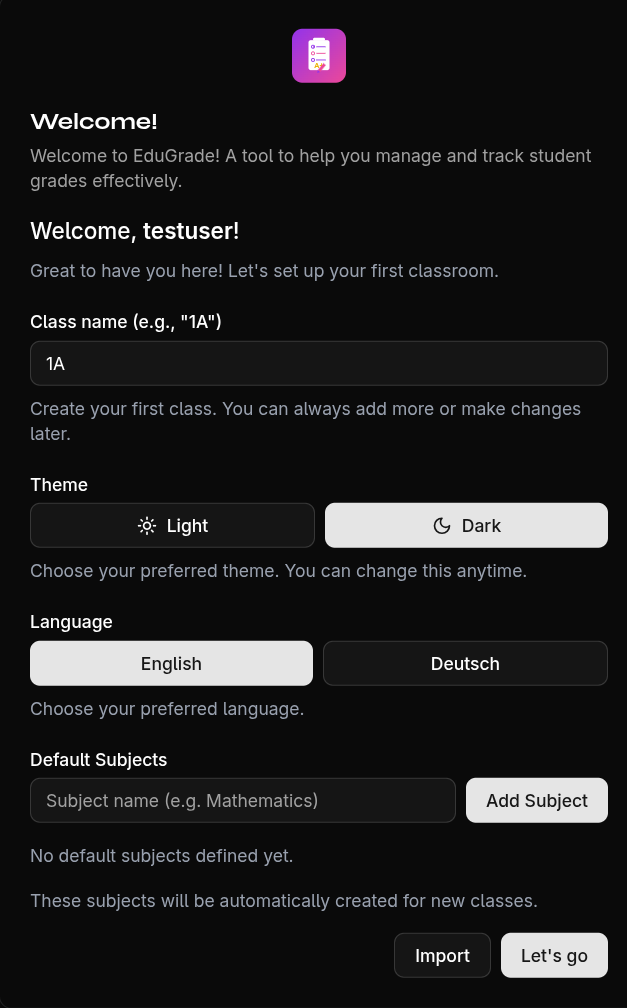
The import is only available on the setup screen — that is, on your first login after registration, or after you have cleared all data (Settings → Clear All Data).
Perform Import
- Log in for the first time, or clear all data via Settings → Clear All Data
- On the setup screen, click Import Backup
- Select your JSON backup file (max. 5 MB)
- EduGrade validates the file
- Confirm the import
What Happens During Import?
- The imported data replaces your current data
- The import is encrypted before saving
- A progress bar shows the status
Warning
The import overwrites all current data. Create a backup first if you want to keep your current data.
Error Handling
If the file is invalid or an error occurs:
- EduGrade displays an error message
- Your existing data remains unchanged
- Verify that the file is a valid EduGrade export file